
Docker on Windows: The Good, the Bad, and WSL 2
Understanding Docker’s Windows reality with WSL 2
Series: Containers, Actually: Building Real Local Dev Environments
ACT II — Docker on Windows
Previous: Core Docker Concepts Without the Mysticism
Next: WSL 2 as a First-Class Development Environment
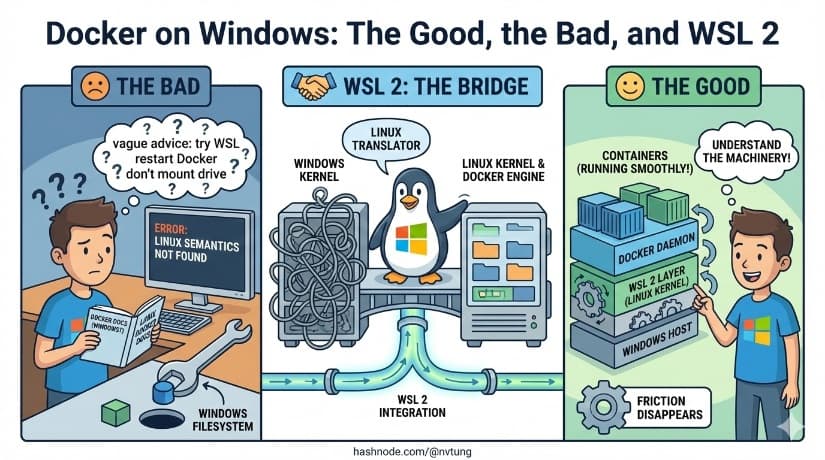
Docker documentation often reads as if Windows were an afterthought. Instructions assume Linux semantics, filesystem behavior, and process models that simply don’t exist on Windows. When things go wrong, Windows users are left with vague advice: “try WSL”, “restart Docker”, “don’t mount your drive”.
This article exists to explain why those suggestions exist—and why they actually make sense once you understand the machinery underneath.
Docker on Windows is not broken. It’s layered. And once you see the layers clearly, the friction starts to disappear.
Why Windows Is “Special” in Docker Land
Docker was born in a Linux world.
Its core features—namespaces, cgroups, overlay filesystems—are Linux kernel primitives. On Linux, Docker runs containers natively. On Windows, that isn’t possible in the same way. Windows has a different kernel, a different filesystem model, and different process isolation semantics.
That means Docker on Windows has always needed translation.

Early Docker for Windows solved this by hiding Linux inside virtual machines. Over time, that approach improved—but it also created confusion, performance issues, and a sense that Docker was “heavy” or unpredictable.
Understanding Docker on Windows requires understanding how Linux is provided.
The Early Days: Hyper-V and the “Big VM” Era
Before WSL 2, Docker Desktop relied on Hyper-V, Microsoft’s hypervisor.
The model looked like this:
A full Linux virtual machine runs in Hyper-V
Docker daemon runs inside that VM
Windows talks to Docker through a bridge
This worked—but poorly for developers.
Problems included:
Slow filesystem access
High memory usage
Awkward networking
Poor tooling integration
Constant context-switching between Windows and Linux worlds

The VM felt opaque. Developers knew it existed, but couldn’t comfortably live inside it.
Hyper-V wasn’t the wrong tool. It just wasn’t the right experience.
Enter WSL 2: A Different Kind of Virtualization
WSL 2 changed everything.
Instead of emulating Linux behavior, WSL 2 runs a real Linux kernel inside a lightweight VM, deeply integrated into Windows.
This matters.
WSL 2:
Uses an actual Linux kernel
Supports native Linux system calls
Uses ext4 internally
Shares networking seamlessly with Windows
Integrates with Windows processes and tools

From Docker’s perspective, WSL 2 isn’t a workaround—it’s a Linux host.
That’s why Docker Desktop eventually switched to WSL 2 as its primary backend.
Why WSL 2 Is Effectively Linux (Not “Linux-Like”)
WSL 2 isn’t a compatibility layer. It’s Linux running under virtualization.
Inside WSL 2:
/procbehaves like LinuxFile permissions behave like Linux
Inotify works
Performance characteristics match Linux far more closely than Windows

For container workloads, this is the critical distinction. Docker expects Linux behavior. WSL 2 provides it.
Once your code and containers live inside WSL 2, Docker stops behaving “weird” and starts behaving normally.
Filesystems: Where Most Pain Comes From
Most Docker-on-Windows frustration traces back to filesystem behavior.
Windows uses NTFS.
Linux uses ext4.
They are optimized for different workloads and make different guarantees. When Docker containers access files on NTFS through translation layers, performance suffers—especially for workloads with:
Many small files
Frequent file watching
Heavy I/O (Node, PHP, Composer, npm, yarn)

This is not a Docker bug. It’s a physics problem.
NTFS vs ext4: The Performance Reality
NTFS:
Excellent for Windows workloads
Strong metadata guarantees
Slower for Linux-style access patterns
Expensive permission translation
ext4:
Designed for Linux tools
Fast metadata operations
Predictable behavior for containers
Native permission handling

When you mount C:\project into a Linux container, every filesystem operation crosses boundaries:
Windows → WSL → Linux → container
That’s a lot of friction.
When your code lives inside WSL’s ext4 filesystem, those boundaries vanish.
Why Code Should Live Inside WSL
This is the single most important rule for Docker on Windows.
Your source code should live inside the WSL filesystem, not under C:\.
That means:
/home/youruser/projectNot
/mnt/c/Users/...
Benefits:
Massive performance improvements
Reliable file watching
Fewer permission issues
Predictable container behavior

Windows tools can still access these files via \\wsl$, and VS Code can edit them directly using Remote WSL. You don’t lose convenience—you gain stability.
Why Mounting from C:\ Hurts Performance
Bind mounts from Windows paths introduce:
Filesystem translation overhead
Permission mapping
Event notification delays
Inconsistent behavior across tools

For small scripts, it might feel “fine”. For real applications, it quietly degrades everything.
The rule of thumb:
If your app feels slow in Docker on Windows, check where your code lives.
Nine times out of ten, it’s the filesystem.
What Docker Desktop Actually Does Behind the Scenes
Docker Desktop on Windows is not “Docker with a UI”. It’s an orchestrator.
Behind the scenes, it:
Sets up a WSL 2 Linux environment
Runs the Docker daemon inside it
Bridges networking between Windows and Linux
Manages volumes and images
Exposes a friendly interface for control

When you run Docker commands from Windows or WSL, you’re talking to the same daemon. The difference is where your files live and how they’re accessed.
Understanding this removes a lot of superstition.
Cooperating With the System, Not Fighting It
Once you accept these realities, Docker on Windows becomes straightforward:
Use WSL 2
Keep code inside the Linux filesystem
Let Docker run where it belongs
Use Windows for editing and orchestration, not execution

Windows stops being “the problem” and becomes what it’s good at: a host, a UI, and a coordinator.
What This Enables Next
Now that Docker on Windows makes sense structurally, we can talk about tooling and workflow—how VS Code, terminals, package managers, and automation fit together without friction.
In the next article, we’ll assemble a practical, Windows-friendly toolchain for containerized development that holds up under daily use—not just tutorials.
Docker on Windows isn’t about compromise anymore.
It’s about alignment.