
WSL 2 as a First-Class Development Environment
Turning WSL 2 into a real daily workspace
Series: Containers, Actually: Building Real Local Dev Environments
ACT II — Docker on Windows
Previous: Docker on Windows: The Good, the Bad, and WSL 2
Next: Tooling Stack for a Containerized Workflow
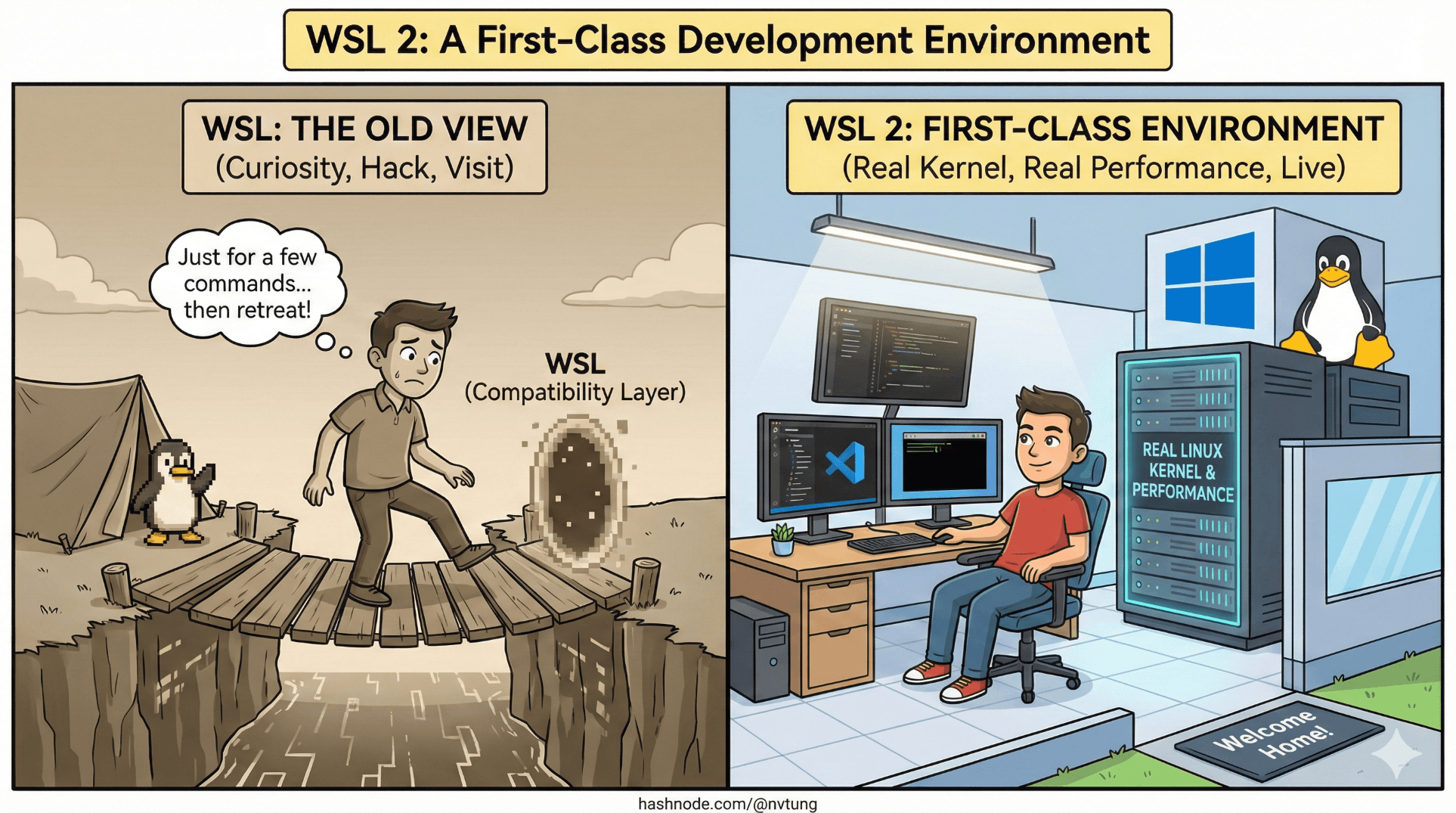
For many Windows developers, WSL started as a curiosity.
A way to run a few Linux commands. A compatibility layer. A necessary evil for Docker. Something you dip into reluctantly, then retreat from as soon as possible.
That framing is outdated.
WSL 2 is no longer a hack. It’s a Linux development platform, running a real kernel, with real performance characteristics, and real integration into Windows. Treating it as anything less leads to confusion, fragile setups, and unnecessary friction.
This article explains how to treat WSL 2 as a place you can live—not just visit.
WSL 2 Is Not “Inside” Windows — It’s Alongside It
The first mental shift is conceptual.
WSL 2 is not Linux emulation. It’s Linux virtualization. A real Linux kernel runs in a lightweight VM, deeply integrated into Windows networking, process management, and tooling.
That means:
Linux tools behave like Linux tools
Filesystems behave like Linux filesystems
Docker behaves like Docker expects to behave

Once you accept that WSL is its own environment—not a Windows feature pretending to be Linux—best practices start to fall into place naturally.
Choosing a Distro: Boring Is Good
The most common question is which Linux distribution to use.
The short answer: pick something boring and widely supported.
Ubuntu is the default choice for good reasons:
Excellent documentation
Large community
Predictable package management
Strong compatibility with Docker tooling

Other distros work, but novelty rarely pays off here. Your goal is stability and familiarity, not experimentation at the OS layer.
Once chosen, treat your distro as long-lived. This is not a disposable VM—it’s your daily workspace.
Folder Structure: Where You Put Code Matters
Filesystem placement is one of the most important—and most misunderstood—decisions in WSL.
Your rule should be simple:
All active development code lives inside the WSL filesystem.
That means paths like:
/home/youruser/projects/app
Not:
/mnt/c/Users/...
The difference is not cosmetic. It determines:
File I/O performance
Reliability of file watchers
Permission behavior
Docker bind mount performance
Use the Linux filesystem for Linux workloads. Windows can still access these files through \\wsl$, but execution should stay on the Linux side.
A clean structure might look like:
~/projects/~/tools/~/sandbox/

Predictability beats cleverness.
Understanding .wslconfig: Your Resource Governor
WSL 2 runs inside a VM. Left unconfigured, it will happily consume as much memory and CPU as Windows allows.
That’s not a bug—it’s an optimization. But developers need control.
The .wslconfig file lives in your Windows user directory and controls WSL globally.
Key settings:
Memory limit
CPU core count
Swap behavior
Limiting resources:
Prevents Docker from starving the host
Keeps fans quiet
Makes performance predictable
The trade-off is simple:
Too little → slow builds, sluggish containers
Too much → Windows becomes unresponsive

The goal isn’t maximum performance—it’s balanced coexistence.
CPU and RAM Tuning: Think in Feedback Loops
Tuning WSL isn’t about chasing benchmarks. It’s about workflow feel.
Ask practical questions:
Do builds complete quickly enough?
Is the editor responsive?
Does Windows remain usable during heavy tasks?
Most development workloads benefit from:
Moderate CPU allocation
Enough RAM to avoid swapping
Stable limits rather than bursts

Remember: WSL shares the machine with Windows. The point is cooperation, not domination.
Windows ↔ WSL Interop: Two Worlds, One Desk
One of WSL’s strengths is interop.
You can:
Launch Linux commands from Windows
Launch Windows apps from Linux
Share networking seamlessly
Share clipboard and paths
But interop should be intentional.
Best practice:
Edit and run Linux workloads inside WSL
Use Windows apps for UI and orchestration
This keeps boundaries clear:
Linux executes
Windows observes and controls

Blurred boundaries create fragile workflows.
Windows Terminal: The Control Tower
Windows Terminal is more than a prettier console.
It:
Hosts multiple shells
Integrates cleanly with WSL
Supports profiles per distro
Encourages staying in-terminal

Treat your terminal as a workspace, not a launcher. Keep sessions open. Let state persist. Context switching is expensive; continuity is power.
VS Code Remote WSL: The Bridge That Actually Works
VS Code Remote WSL is the keystone tool that makes this whole setup humane.
It allows:
VS Code UI to run on Windows
Language servers and tools to run in Linux
Extensions to install per-environment
Paths to resolve correctly

This avoids the worst failure mode:
Editing Linux code with Windows tooling that doesn’t understand Linux.
Once you use Remote WSL consistently, “WSL vs Windows” fades into the background. You’re just developing.
Living Inside WSL Daily
When WSL becomes first-class, behavior changes:
You open terminals without thinking
You clone repos directly into Linux
You install dependencies without fear
You rebuild environments confidently
You stop debugging filesystem ghosts

WSL stops being “that Docker thing” and becomes your development OS.
That’s the shift that matters.
Where This Takes Us Next
Now that WSL is established as a stable foundation, the next step is tooling—how Docker Desktop, docker-compose, Node, package managers, and automation scripts fit into a coherent workflow on Windows.
In the next article, we’ll assemble that toolchain deliberately, focusing on daily usability rather than tutorial perfection.
WSL doesn’t replace Windows.
It completes it.