
Performance, Stability, and Resource Management of my Containerized Stack
Keeping Docker dev environments fast over time
Series: Containers, Actually: Building Real Local Dev Environments
ACT III — Real Implementation: My Humhub Stack
Previous: Working Day-to-Day Inside my Containerized Stack
Next: Containerized: Lessons Learned & What I’d Do Differently
Disclaimer (NDA Notice)
This article is based on a real long-lived development environment used in an internal project.
Due to NDA constraints, some service names, metrics, paths, and thresholds are generalized or anonymized.The performance patterns, tuning strategies, diagnostics, and failure modes described here are real.
Treat this as operational guidance, not an exact replica of internal infrastructure.
Most complaints about Docker performance share the same shape:
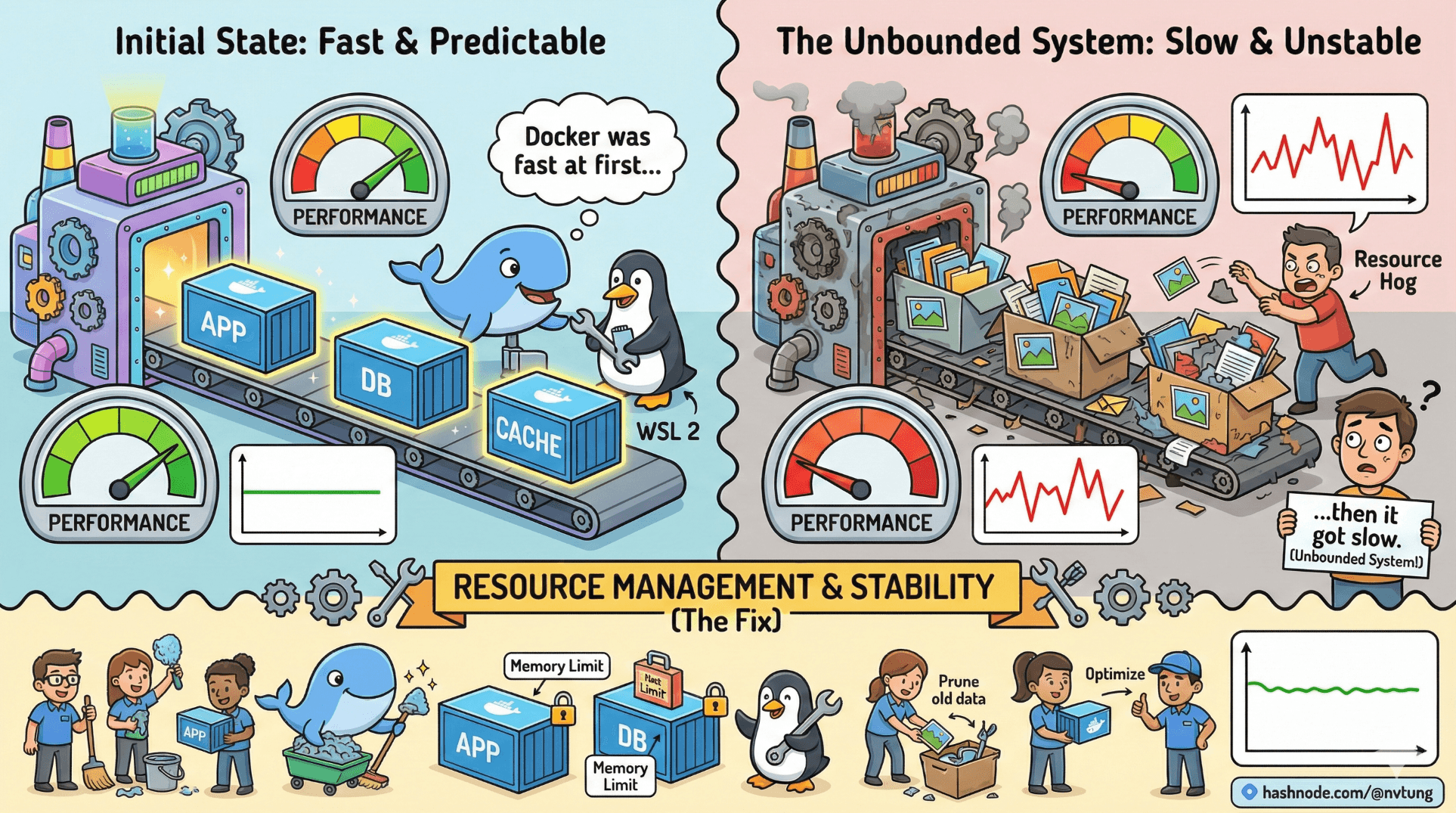
“Docker was fast at first… then it got slow.”
That statement is rarely wrong—but it’s usually incomplete.
Docker itself doesn’t slowly degrade.
Unbounded systems do.
This article explains how to keep a containerized dev stack fast, stable, and predictable over time—especially on Windows with WSL 2.
First Principle: Performance Is a Budget, Not a Setting
Performance problems almost always come from one of three places:
Unbounded resources
Leaky state
Invisible work

Docker and WSL 2 are powerful precisely because they remove constraints by default. That power must be shaped deliberately.
Docker + WSL Resource Tuning
Why WSL Needs Limits
WSL 2 runs inside a VM.
Left unconstrained, it will:
Use as much RAM as it wants
Cache aggressively
Compete with Windows for CPU
That feels fine—until it doesn’t.
.wslconfig: The Governor
Create or edit this file on Windows:
C:\Users\<YourUser>\.wslconfig
Example:
[wsl2]
memory=6GB
processors=4
swap=2GB

What These Settings Actually Do
memory: Hard cap for WSL VMprocessors: CPU cores exposed to Linuxswap: Emergency overflow (use sparingly)
This is not about “maximum speed”.
It’s about predictable coexistence.
After changes:
wsl --shutdown
Then restart Docker Desktop.
When Containers Get Slow (And Why)
Slowness usually shows up as:
Long response times
Delayed hot reloads
Slow builds
Fans spinning up unexpectedly
Let’s decode the common causes.
Cause 1: Filesystem Misplacement
If your code lives under:
/mnt/c/Users/...
You’ve already lost.
This introduces:
NTFS ↔ ext4 translation
Event notification delays
Excessive CPU overhead
Fix:
Keep code inside WSL:
/home/youruser/projects/app
This single change fixes more “Docker slowness” reports than anything else.
Cause 2: Unbounded Logs
Containers write logs forever unless configured otherwise.
Over time:
Log files grow
Disk I/O increases
Docker metadata bloats
Check log size:
docker inspect app | grep LogPath
Then:
du -sh /var/lib/docker/containers/*

Mitigation (docker-compose)
services:
  app:
    logging:
      driver: "json-file"
      options:
        max-size: "10m"
        max-file: "3"
Logs should inform—not accumulate indefinitely.
Volume Performance Tips
Volumes are fast—but not free.
Use Named Volumes for Databases
volumes:
  mysql-data:
Why:
Docker optimizes access
Avoids NTFS penalties
Predictable performance

Avoid Bind Mounts for Heavy I/O
Bad:
- ./mysql-data:/var/lib/mysql
Good:
- mysql-data:/var/lib/mysql
Bind mounts are for code, not state.
Detecting Memory Leaks & Runaway Services
Containers don’t leak memory magically.
Applications do.
Monitoring Resource Usage
docker stats
Watch for:
Memory steadily increasing
CPU pinned at 100%
Unexpected background activity

Common Leak Sources
Background workers without limits
Message queues without consumers
Misconfigured caches
Debug tooling left enabled
Example: limiting PHP memory usage
memory_limit = 512M
Limits force failures early—when they’re diagnosable.
Runaway Background Workers
Queues are powerful—and dangerous.
If workers aren’t bounded, they will:
Consume CPU endlessly
Retry failing jobs forever
Fill logs rapidly
Mitigation example:
docker-compose exec app php artisan queue:work --tries=3 --timeout=90

Bound retries.
Bound execution time.
Unbounded background work is technical debt with interest.
Cleaning Up Responsibly
Cleaning up is not failure.
It’s maintenance.
Remove Stopped Containers
docker container prune
Remove Unused Images
docker image prune
Remove Unused Volumes (Be Careful)
docker volume prune
Only do this when you understand what’s disposable.

Reset Everything (Deliberately)
docker-compose down -v
docker system prune --volumes
This is a reset, not a fix.
Use it intentionally—not emotionally.
The “Docker Is Slow” Trap
Docker is rarely slow by itself.
What’s slow:
Filesystem translation
Unbounded resource usage
Accumulated state
Invisible background work

When those are addressed, Docker becomes boring again.
And boring infrastructure is excellent infrastructure.
Long-Term Stability Habits
Stable stacks share traits:
Resource limits are explicit
Volumes are intentional
Logs are bounded
Workers are controlled
Rebuilds are routine
Cleanup is scheduled

None of this is glamorous.
All of it prevents pain.
What Comes Next
With performance stabilized, the final step is reflection:
What worked
What didn’t
What you’d change next time
How this scales beyond one machine
That’s where lessons become architecture.
Speed comes from clarity.
Stability comes from restraint.