
Working Day-to-Day Inside my Containerized Stack
Making a Docker dev stack usable every day
Series: Containers, Actually: Building Real Local Dev Environments
ACT III — Real Implementation: My Humhub Stack
Previous: Step-by-Step: Bootstrapping my Containerized Environment
Next: Performance, Stability, and Resource Management of my Containerized Stack
Disclaimer (NDA Notice)
This article is based on a real internal project and production-adjacent development setup.
Due to NDA constraints, some service names, commands, paths, and credentials are anonymized or simplified.The workflows, Docker behavior, debugging techniques, and trade-offs are real.
Treat this as a practical operating manual, not a verbatim replica.
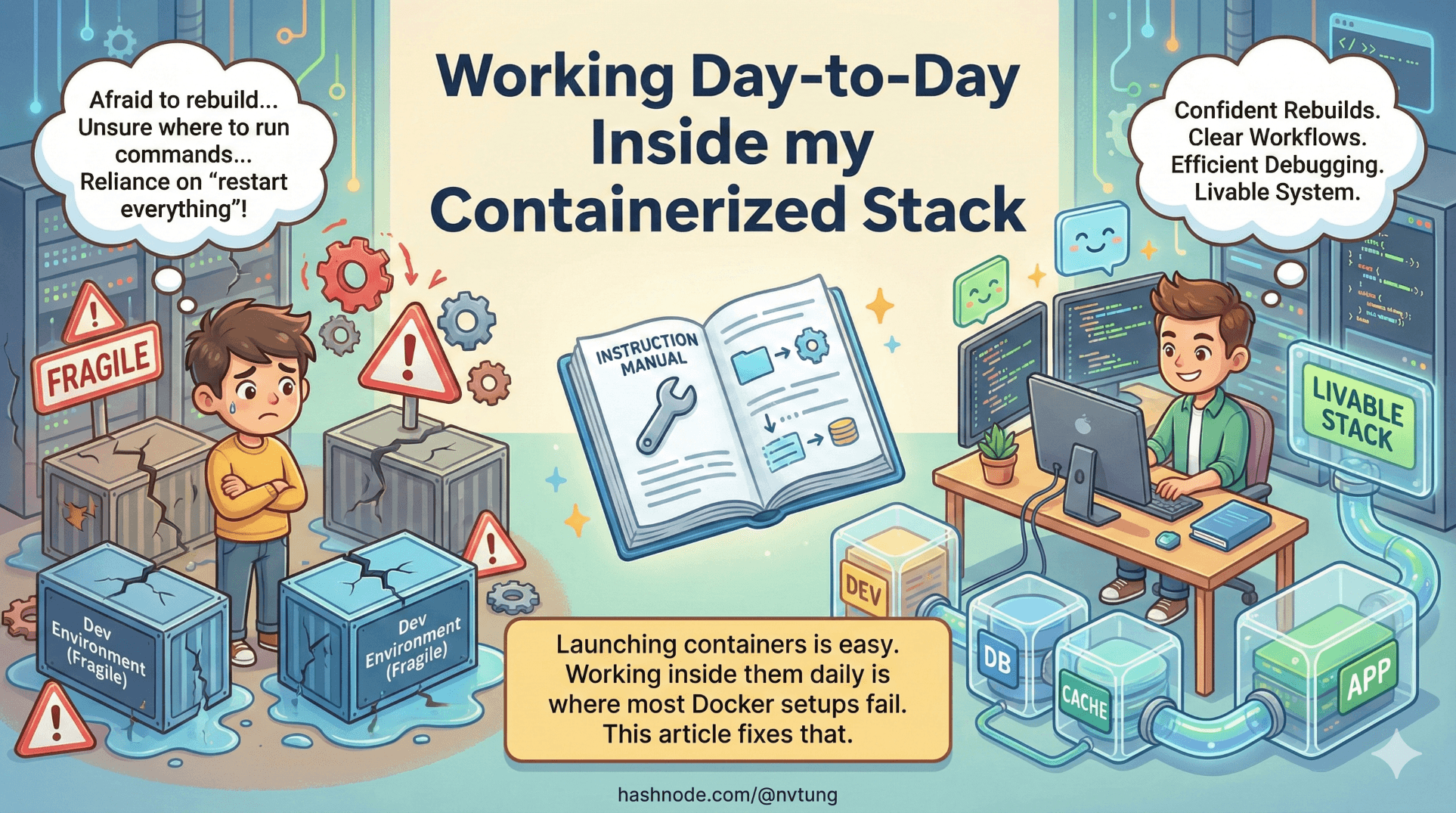
Launching containers is easy.
Working inside them daily is where most Docker setups fail.
If a stack feels fragile—if you’re afraid to rebuild, unsure where to run commands, or reliant on “restart everything” as a debugging strategy—then the system hasn’t become livable yet.
This article fixes that.
The Core Question: Where Should This Command Run?
Most day-to-day confusion boils down to one question:
Should I run this command inside a container or inside WSL?
There is no universal answer—but there is a consistent rule.
Rule of Thumb
Commands that depend on the app runtime → run inside the container
Commands that manage the environment or repo → run inside WSL
Let’s make that concrete.

Commands That Belong in Containers
These commands assume:
A specific runtime version
App-level dependencies
Access to internal service networking
Examples:
docker-compose exec app php artisan migrate
docker-compose exec app php artisan queue:work
docker-compose exec app composer install
Why inside the container?
PHP version is guaranteed
Extensions are installed
Network hostnames (
mysql,redis) resolve correctly
Running these in WSL would quietly reintroduce drift.
Commands That Belong in WSL
These commands manage your workspace:
git pull
git checkout feature-x
docker-compose up -d
docker-compose ps
WSL is your control plane. Containers are execution environments.
Blurring this boundary leads to confusion.
Logs and Debugging: Stop Guessing
Viewing Logs the Right Way
To inspect logs for a service:
docker-compose logs app
To follow logs live:
docker-compose logs -f web
This is always better than:
Guessing
Restarting blindly
Adding random
echostatements

Debugging Order (Important)
When something breaks, debug in this order:
Container status
docker-compose psService logs
docker-compose logs appConnectivity
docker-compose exec app ping mysqlApp-level errors
Most issues are visible in logs within 30 seconds—if you look.
Rebuilding Images Safely (Without Nuking Everything)
Rebuilding is inevitable. Fear of rebuilding means the system is brittle.

Safe Rebuild (Most Common)
docker-compose build app
docker-compose up -d app
This:
Rebuilds only the app image
Restarts only that service
Preserves volumes and data
Full Rebuild (When Dependencies Change)
docker-compose build
docker-compose up -d
Use when:
Dockerfile changes
System packages change
PHP extensions change
Nuclear Rebuild (Last Resort)
docker-compose down -v
docker-compose build --no-cache
docker-compose up -d
This:
Deletes containers
Deletes volumes
Rebuilds everything from scratch
Only do this when you intend to reset state.
Database Access: Treat It Like Production
Accessing the Database via Container
docker-compose exec mysql mysql -u app -p
This ensures:
Correct version
Correct credentials
Correct data
Avoid connecting to MySQL installed on Windows. That defeats the entire architecture.

Inspecting Data Without Fear
Use:
CLI tools inside the container
Admin UIs exposed via ports (when available)
Never edit database files directly.
Volumes exist precisely so you don’t have to.
Resetting State (Intentionally, Not Accidentally)
Sometimes you need a clean slate.

Reset App State Only
docker-compose exec app php artisan migrate:fresh
This:
Drops and recreates schema
Keeps containers intact
Reset Database Completely
docker-compose down
docker volume rm yourproject_mysql-data
docker-compose up -d
Explicitly deleting the volume is a feature, not a failure.
Resetting state should feel deliberate—not risky.
Hot Reloads and File Watching
Why Bind Mounts Matter
Your app code is bind-mounted:
volumes:
  - ./app:/var/www/html
That means:
Code changes reflect immediately
No rebuild required
Containers stay running

File Watching Caveats (Windows + WSL)
File watchers rely on filesystem events.
To keep them reliable:
Keep code inside WSL filesystem
Avoid
/mnt/cLimit antivirus scanning Docker directories
If hot reload feels flaky, it’s almost always a filesystem issue—not Docker.
When Things Feel “Off”
Here’s a diagnostic checklist:
Is code inside WSL?
Are containers restarting?
Are logs clean?
Did you rebuild after changing dependencies?
Are you running commands in the right place?

If you can answer those confidently, debugging becomes boring—in the best way.
Living With the Stack Daily
A livable stack has these qualities:
You’re not afraid to rebuild
Logs are your first instinct
State resets are intentional
Commands have clear homes
Performance is predictable

When those are true, Docker stops being “in the way” and becomes invisible infrastructure.
That’s the goal.
What Comes Next
With daily workflows established, the final pieces are:
Performance tuning
Resource optimization
Long-term maintenance habits
Lessons learned over time
That’s where we go next—because the real test of any dev environment isn’t day one.
It’s day fifty.
A good stack doesn’t just start.
It stays usable.