
Tooling Stack for a Containerized Workflow
Designing a coherent toolchain for Docker dev.
Series: Containers, Actually: Building Real Local Dev Environments
ACT II — Docker on Windows
Previous: WSL 2 as a First-Class Development Environment
Next: Containerized: Architecture Overview of my Humhub Stack
Most local development pain doesn’t come from Docker itself.
It comes from tooling sprawl.
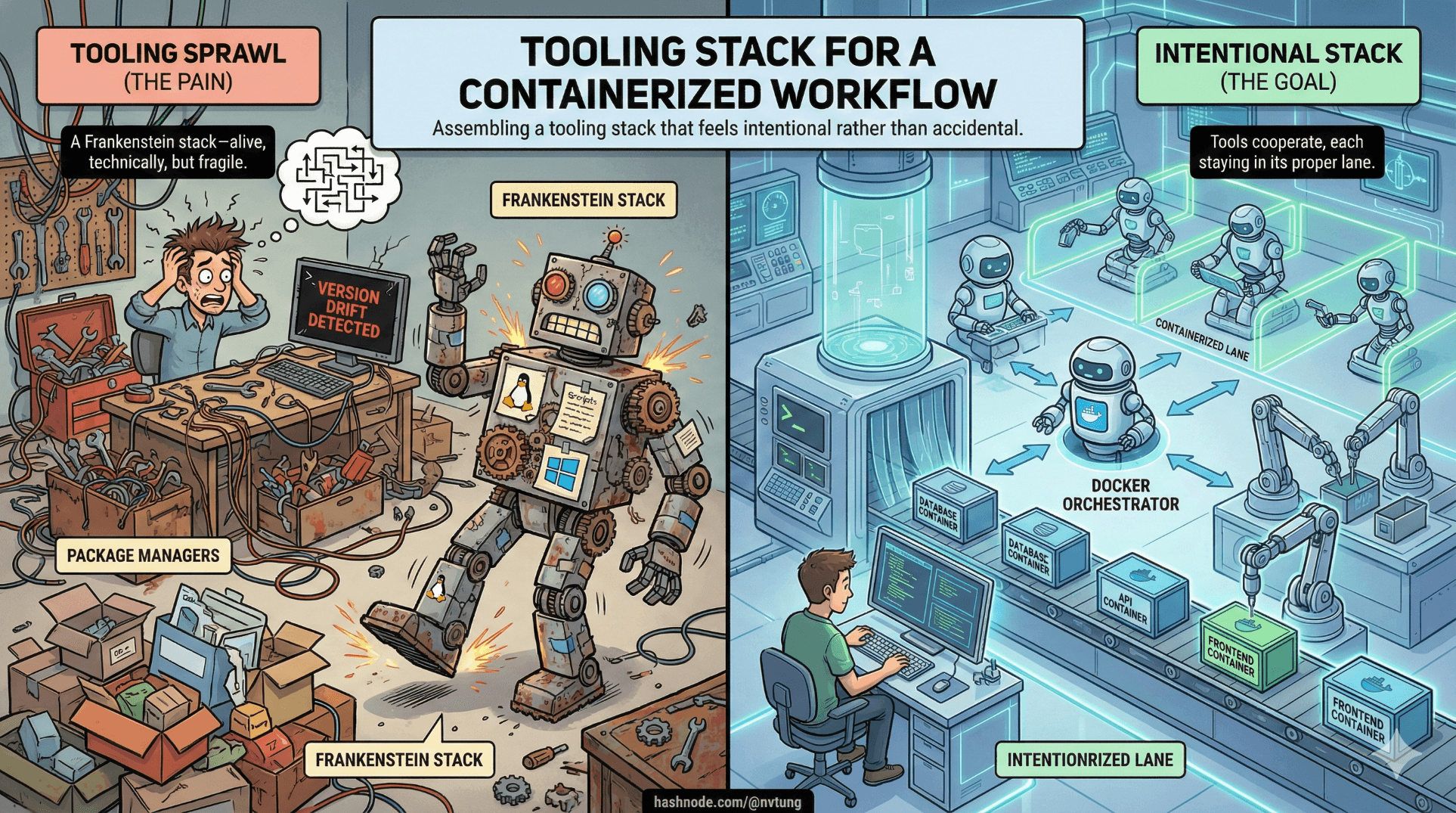
A terminal here. A package manager there. Some things installed locally, others inside containers. Versions drifting quietly. Scripts half-automated. Eventually, the setup becomes a Frankenstein stack—alive, technically, but fragile and unpleasant to work with.
A containerized workflow only works when tools cooperate, each staying in its proper lane. This article explains how to assemble a tooling stack that feels intentional rather than accidental.
Tools Are Roles, Not Accessories
Before naming tools, it helps to name responsibilities.
Every development tool answers one of three questions:
Where does code run?
Where does code live?
Who orchestrates everything?
Confusion happens when a tool tries to answer all three.
A healthy stack assigns clear roles:
Containers execute workloads
WSL provides a Linux environment
Windows hosts UI and orchestration
Editors and package managers bridge human intent to machine execution

With that framing, the stack starts to design itself.
Docker Desktop: The Orchestrator, Not the Star
Docker Desktop is often treated as “Docker itself”. It isn’t.
Docker Desktop’s real job is:
Running the Docker daemon
Managing Linux integration (via WSL 2)
Providing networking, volumes, and lifecycle control
Offering a UI for inspection and debugging
It is infrastructure, not a daily interaction surface.
Best practice:
Configure Docker Desktop once
Let it run quietly
Interact with Docker via CLI, not UI

When Docker Desktop is constantly opened, something upstream is unclear.
docker-compose: Declaring Systems, Not Scripts
docker-compose is the backbone of a multi-service local environment.
It is not:
A shell script
A deployment tool
A replacement for documentation
It is:
A declarative system map
A contract between services
A reproducible environment definition
A good docker-compose.yml reads like architecture, not instructions.
Key principles:
Services are named by responsibility
Networks express communication intent
Volumes express persistence
Environment variables express configuration

If you can’t explain a compose file without running it, it’s doing too much.
VS Code Remote Extensions: Context Matters
The single most important VS Code concept in containerized workflows is context.
VS Code can run:
On Windows
Inside WSL
Inside a container
The Remote extensions exist to make that explicit.
Remote WSL
Use this when:
Editing code that lives in WSL
Running Linux-based tools
Working with Docker on Windows
This should be the default for containerized workflows on Windows.
Remote Containers
Use this when:
You want tooling to run inside a container
The container defines the dev environment
You need strict parity with CI or production

Most teams overuse Remote Containers early. Remote WSL is usually the better foundation.
Node.js in a Dockerized World
Node.js causes more confusion than almost any other tool in containerized setups.
The key question is:
Is Node part of your application runtime, or just a build tool?
Node as a Runtime
If your app runs on Node:
Node belongs in the container
The container defines the Node version
The host Node version is irrelevant
This guarantees parity and avoids version drift.
Node as a Build Tool
If Node is only used for:
Asset compilation
Linting
Formatting
Frontend builds
Then installing Node in WSL is reasonable.
The rule:
Runtime Node → container
Tooling Node → WSL

Mixing the two without intention leads to subtle version conflicts.
Package Managers: Local Convenience, Global Discipline
Package managers are not just installers. They encode assumptions.

npm / yarn
For JavaScript:
Lock files are non-negotiable
Global installs should be rare
Versions should be pinned per project
When used inside containers, package managers become deterministic. When used globally without version control, they become drift engines.
composer
For PHP:
Belongs inside the container when PHP runs there
Should not depend on host PHP
Benefits enormously from containerized consistency
Composer is happiest when it never sees Windows.
Automation Scripts: Bootstrap Once, Not Always
Automation tools like Chocolatey and setup scripts solve one problem:
“How fast can a new machine become usable?”
They are not runtime dependencies. They are onboarding accelerators.
Use them to:
Install Docker Desktop
Install WSL
Install VS Code
Install Windows Terminal
Do not use them to:
Manage app dependencies
Replace container builds
Hide architecture complexity

If automation scripts are required every day, something is mislocated.
Host vs Container: Drawing the Boundary
This boundary is the heart of a sane workflow.
What Belongs on the Host (Windows + WSL)
Editors
Terminals
Git
Docker CLI
General-purpose tooling
What Belongs in Containers
Application runtimes
Databases
Caches
Queues
Search engines
App-specific dependencies

The host should be stable and boring. Containers should be disposable and precise.
Version Pinning: Time Is the Enemy
Unpinned versions guarantee future pain.
Pin:
Node versions (nvm, Docker images)
Package manager lock files
Docker base images
Database versions
Avoid:
latesttagsGlobal package installs
Undocumented upgrades

Reproducibility is not about perfection. It’s about repeatability under time pressure.
Avoiding the Frankenstein Stack
A Frankenstein stack has recognizable symptoms:
“Run this script if it breaks”
“It works after restarting everything”
“Use this Node version locally, but another in Docker”
“Don’t touch that container, it’s fragile”
A coherent toolchain:
Has clear boundaries
Rebuilds cleanly
Explains itself through structure
Breaks loudly and predictably

When tools cooperate, complexity becomes manageable instead of mysterious.
Where This Takes Us Next
At this point, we have:
A realistic model of modern apps
A working understanding of Docker
A Windows-friendly Linux foundation
A coherent tooling philosophy
Now it’s time to apply all of this to something real.
In the next article, we’ll step into an actual full-stack implementation and examine its architecture—not as a template, but as a case study shaped by these exact constraints.
Tools don’t save you.
Systems do—when they’re designed deliberately.